
Add image or colour swatches to your product options/variants.
Create a metaobject to store the colors
- Head to Settings > Custom data > Metaobjects (scroll down) > Add definition (or click here - https://admin.shopify.com/settings/custom_data/metaobjects/create)
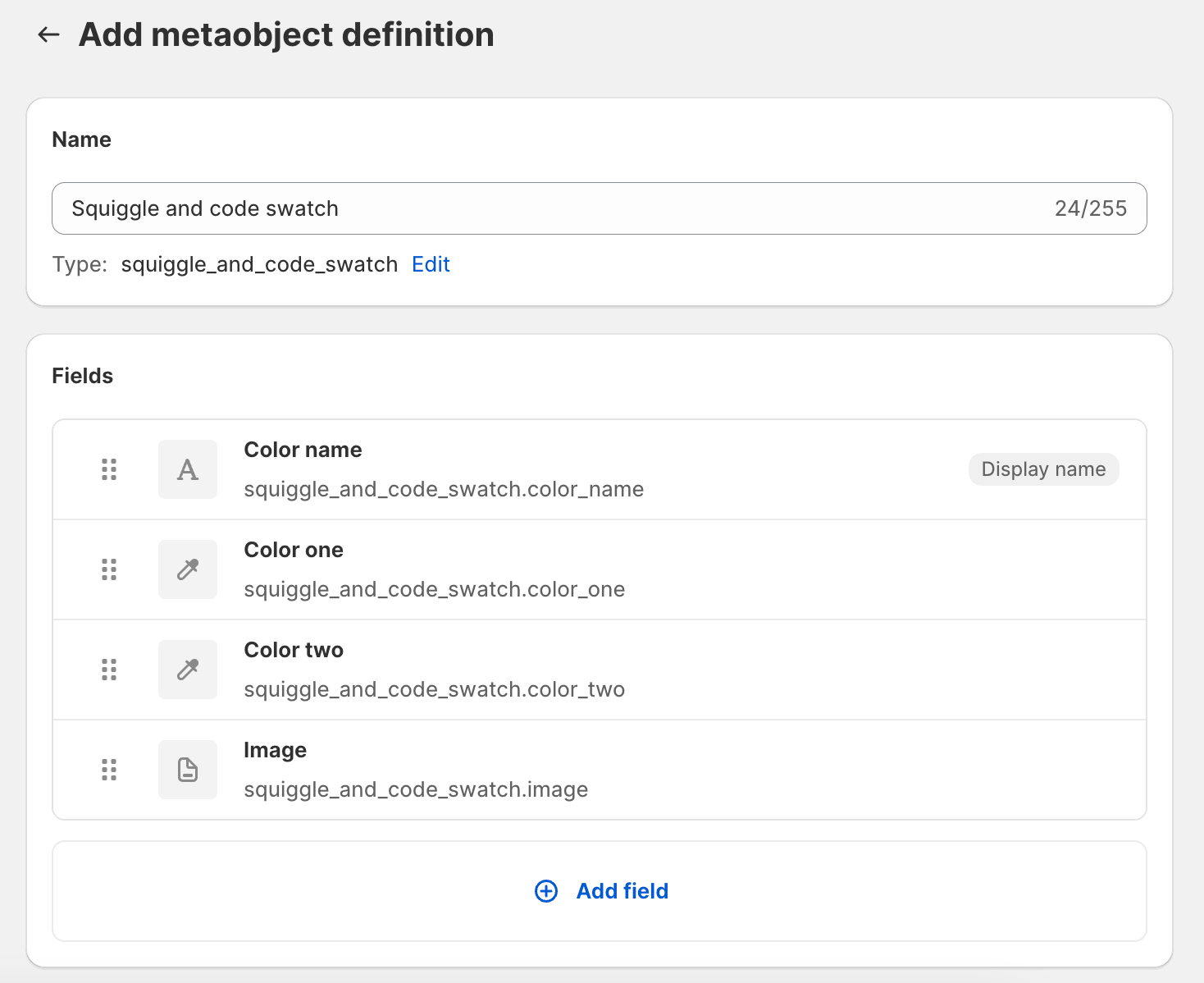
- Enter the following details:
Name: Squiggle and code swatch
Field definition #1 (required):
Type: Single line text
Name: Color name
Field definition #2 (requied):
Type: Color
Name: Color one
Field definition #3 (only needed to have two-color/split swatches):
Type: Color
Name: Color two
Field definition #4 (only needed to have image swatches):
Type: File
Name: Image
Description: 100x100px .jpg or .png recommended.
Create the swatches
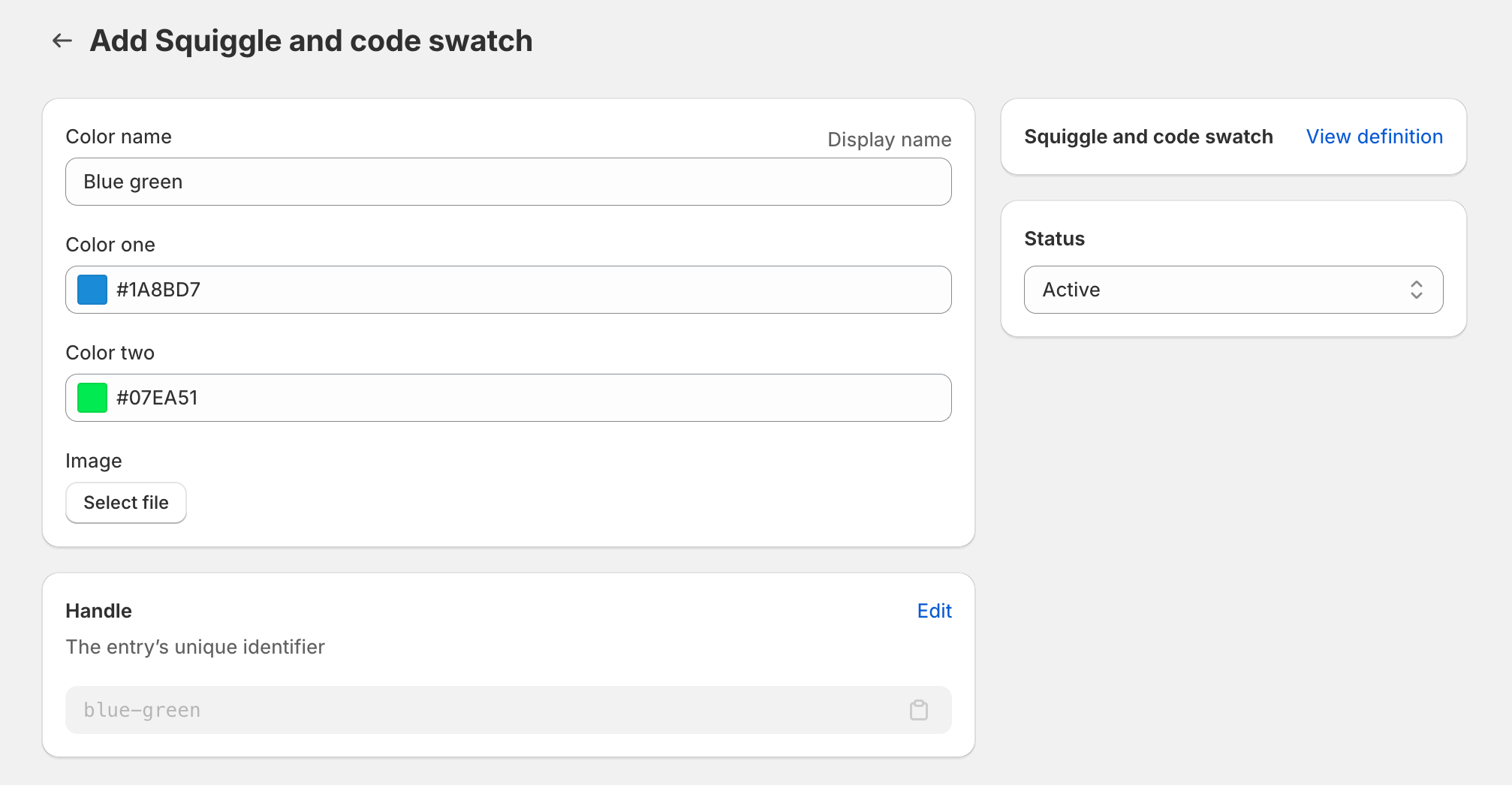
- Go to Content > Metaobjects > Add entry > Squiggle and code swatch:

- Enter the color name exactly as it appears in the product titles. Ensure the handle pulls through from the title. E.g. if your color name was "Blue", the handle should be "blue". If the color name was "Pink/White", the handle should be "pink-white". 'Enter your colour information, and click Save:
Ensure your theme settings are set up to display swatches
Head to the Variant picker block in your product sections, and ensure Image swatch is selected:

Notes
- If you'd like to adjust the zoom level of the image swatches, you can do so under Theme settings > Swatches > Image swatch zoom. This is available as of Divide version 3.5.0.
- You can also set up the swatches to work with our Linked product functionality. This allows you to link different products together by displaying swatches. Please see here for the documentation on this.
If you have any questions or issues, send us a message, we're more than happy to help you out :)